Windows 11 Home or Pro?
For the vast majority of home users, the Home version of Windows 11 is right choice. This is because the main difference between Home and Pro is the latter having support for corporate network security policies. This makes Pro safer and easier to manage if your business has lots of PCs. In addition, you can link a Pro device to a domain, which isn't possible with Home. Pro also has useful features such as Remote Desktop to remotely connect to another PC in the office. All these extra features come at a cost though, with Pro costing around £80 more than Home.
If you’re still unsure, use the table below to see which is right for you.
Recommended Windows 11 version by use case
| Gaming |
Home |
| Home theatre |
Home |
| Content creation |
Home |
| High-end 3D graphics and video* |
Pro |
| Office applications (self-employed) |
Home |
| Office applications (employed) |
Pro |
*Large projects may need more than 128GB of RAM, which is the maximum supported by Home. See the Hardware Limitations section for further detail.
Windows 11 Fundamentals
Both versions of Windows 11 come with automatic updates enabled, which means you get all the latest features and security updates at no extra cost. Both also feature Copilot, Microsoft’s AI assistant, integrated directly and designed to boost productivity and streamline workflows using natural language commands. It functions as an everyday AI companion, providing assistance across the operating system, the web, and generating content in Microsoft 365 applications.
Windows 11 Home and Windows 11 Pro fundamentals comparison
| Microsoft Edge |
✔ |
✔ |
| Microsoft Store |
✔ |
✔ |
| Snap Layouts |
✔ |
✔ |
| Desktops |
✔ |
✔ |
| Microsoft Teams |
✔ |
✔ |
| Touch, Pen & Voice |
✔ |
✔ |
| Widgets |
✔ |
✔ |
| Gaming |
✔ |
✔ |
| Copilot AI Assistant |
✔ |
✔ |
✔ = Included
Windows 11 Security
Windows 11 has inbuilt security for protecting user identities, devices and information with a comprehensive range of features including firewall, encryption, Windows Hello, parental controls and antivirus. In addition the Pro version also includes BitLocker that protects the files on internal and external drives. This feature is especially useful if you have private data on your PC or laptop, because only you will be able to access these files with a password. Your computer or laptop does need a TPM chip, because you can't use this feature without one.
Windows 11 Home and Windows 11 Pro security comparison
| Windows Hello Using facial recognition, a fingerprint, or PIN, Windows Hello is a fast, secure and password-free way to unlock your compatible Windows device. |
✔ |
✔ |
| Device Encryption Device encryption helps protect your data by encrypting it, so only authorised individuals can access your device and data. |
✔ |
✔ |
| Firewall and Network Protection Windows includes built-in firewall and internet protections to help safeguard against viruses, malware and ransomware. |
✔ |
✔ |
| Internet Protection App and browser control in Windows Security includes SmartScreen protection against potentially dangerous apps, files, websites and downloads. |
✔ |
✔ |
| Parental Controls Manage screen time, limit access to mature content, control online purchases and check family device security. |
✔ |
✔ |
| Secure Boot Secure Boot helps prevent malicious software and unauthorised operating systems from loading during start-up. |
✔ |
✔ |
| Windows Defender Antivirus Windows Defender Antivirus uses cloud protection, machine learning and behaviour analysis to protect against emerging threats. |
✔ |
✔ |
| BitLocker device encryption If your device is lost or stolen, BitLocker and BitLocker To Go help lock down systems and data. |
✖ |
✔ |
| Windows Information Protection (WIP) WIP helps protect against potential data leakage without otherwise interfering with the employee experience. |
✖ |
✔ |
✔ = Included | ✖ = Not included
Business Management and Deployment
Windows 11 Pro also includes a whole host of management and network features for business users in a network environment.
Windows 11 Home and Windows 11 Pro business management comparison
| Mobile device management MDM provides an alternative to traditional PC management, letting you transition to cloud-based management at your own pace. |
✖ |
✔ |
| Group Policy Manage PCs, user accounts and groups, and define specific security and networking policies for users and devices. |
✖ |
✔ |
| Enterprise State Roaming with Azure Provides users with a unified experience across Windows devices and reduces time needed to configure new devices. |
✖ |
✔ |
| Microsoft Store for Business One place to find, manage and distribute apps to Windows 11 devices in volume. |
✖ |
✔ |
| Assigned Access Run different applications depending on the user and keep individual identities separate and secured. |
✖ |
✔ |
| Dynamic Provisioning Transform a new PC into a productive organisation device with minimal time and effort. |
✖ |
✔ |
| Windows Update for Business Helps reduce management costs, control update deployments and provide access to the latest Microsoft innovations. |
✖ |
✔ |
| Support for Active Directory Domain Join and Group Policy help IT teams manage PCs, user accounts, groups, files, printers and security policies. |
✖ |
✔ |
| Support for Azure Active Directory Employees can use a single login across Windows 11, Microsoft 365 and other Microsoft services. |
✖ |
✔ |
✔ = Included | ✖ = Not included
As you can see from the comparison tables the Home version offers a great feature set for any regular home user or self-employed worker. If you value the extra security features or require productivity and business tools for a corporate environment then Pro is the way to go.
Hardware Limitations
Windows 11 does require some enhanced hardware features that only later generation PCs may support - please use the Microsoft Health Check app to ensure your PC is compatible with the new operating system. Additionally, it’s also important to note that the Home version has some limits in terms of what hardware it can support, which means that even if you’re self-employed, you may need to buy Pro for your workstation.
Windows 11 Home and Windows 11 Pro hardware limitations comparison
| Maximum number of CPU cores |
64 |
128 |
| Maximum number of CPU sockets |
1 |
2 |
| Maximum supported RAM |
128GB |
2TB |
Which Format Should I Choose?
The final decision you need to make is what format of Windows to buy. We sell Windows in a variety of options, so let’s look at how they differ.
Electronic Software Download (ESD)
No media is required, simply download and install the software from a web link.
USB Pen Drive
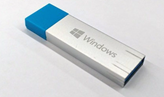
The software is contained on a USB pen drive, so a Type-A USB port or adapter will be required on your device.
DVD Disc
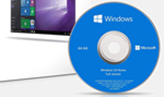
The software is contained on a DVD, so you’ll need a DVD drive in your device or an external drive.
Need Help Choosing?
If you have any further questions about Microsoft Windows, speak to one of our friendly advisors.